
Independent editorial guidance on compatibility, device settings, safety, and responsible use.
Cricket stream buffering or using too much data? How to troubleshoot
Independent editorial guidance on compatibility, device settings, safety, and responsible use.
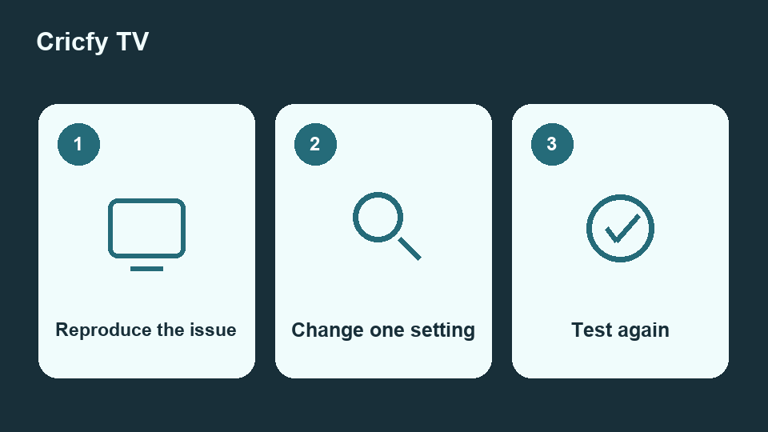
If you searched for Cricfy TV because a cricket stream keeps buffering, freezes on your TV or uses data faster than expected, start with one controlled test at a time. Check the match on an authorised service, then compare playback on another network, device or supported player as needed. The pattern can help you tell whether to adjust video quality, change your connection or ask the broadcaster to investigate a match-specific problem.
Confirm the stream and app you are testing
Find the event organiser’s broadcast notice and check which service is authorised to show your fixture in your viewing country. Open that service’s schedule directly and make sure you have the live event page. If you’re using its app, start on the broadcaster’s website and follow the link to the store listing. Compare the listed developer and support details with the broadcaster’s information before installing or updating it.
Make a brief note of what happens. A spinner every few balls, silent video and an account error are different symptoms. Record the match, device, approximate time and any exact error text. Try another video on the same service if you have access. If everything plays except the live match, check the broadcaster’s support or service updates. A replacement Cricfy TV APK from a search result would introduce another variable and an unverified installer.
Compare the connection before changing device settings
If a stream stalls over Wi-Fi, move the device closer to the router and try the same feed again. Pause large uploads or downloads on your own devices for the test if you can. With a supported wired connection on a television or streaming device, compare it with Wi-Fi using the same match. Look for whether playback holds steady over several minutes, since a brief improvement can be coincidental.
On a phone, a short mobile data test can help if your plan has enough allowance. Try the same match at the same quality on Wi-Fi and mobile data. If it stalls only on Wi-Fi, check whether other devices on that network also struggle. If it stalls on both networks but plays on another supported device, focus on the first phone and its player. Restart the app or browser, then test again before changing anything else.
Reduce video quality and measure actual usage
If the player offers a quality selector, try a lower setting and see whether motion stays smooth enough to follow the ball and read the score. On a small phone screen, a modest reduction may be easier to live with than repeated stalls. Automatic quality can increase when the connection improves, so use a fixed lower option if the player provides one and you need to contain data use.
To get a rough budget, note the app’s mobile data usage on your phone before and after ten minutes of uninterrupted viewing. If the difference is 100 MB, a comparable hour would use about 600 MB. Treat this as an estimate because adaptive quality and the stream itself can change consumption. Stop playback when switching to a score page. Check whether the player continues running in a floating window if your usage keeps climbing.
Handle TV and account problems separately
If the picture plays on a phone but casting fails, check the broadcaster’s instructions for your receiver. Confirm the devices can discover each other and test with another video from the same app if possible. If all video is silent, check the TV’s selected audio output and volume. If only one match is silent, check the player’s mute control and any audio options before changing TV settings.
For sign-in or access errors, confirm that you’re using the account and device covered by the broadcaster’s terms. Check the event schedule again if a location message appears, particularly when travelling. If the issue persists after the connection and device tests, send the broadcaster your error text, match time, device model and the results of the comparisons. You can keep following the game through the organiser’s scorecard while support investigates.
Next step